Fleet
Drivers
This section enables you to manage drivers and assign them to vehicles. The Drivers section helps identify and track individuals operating vehicles. Driver details are visible in the vehicle details panel. Driver information is also included in reports.
Adding a New Driver
To create a new driver record, click the + Add Driver button. This will open the Driver Properties window, where you can input the driver's details.
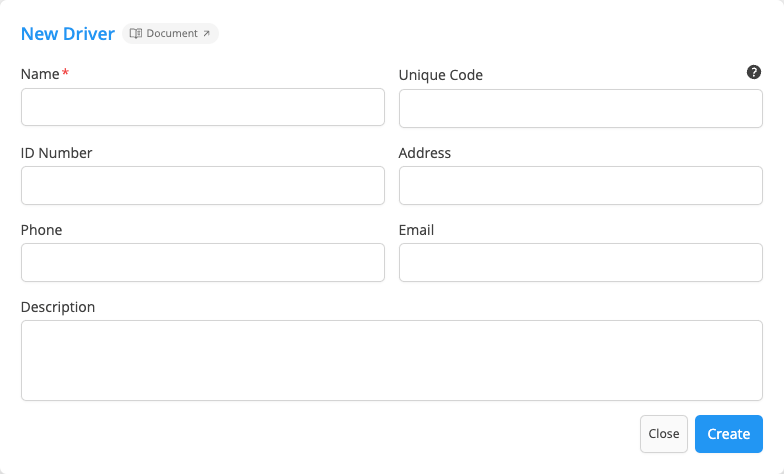
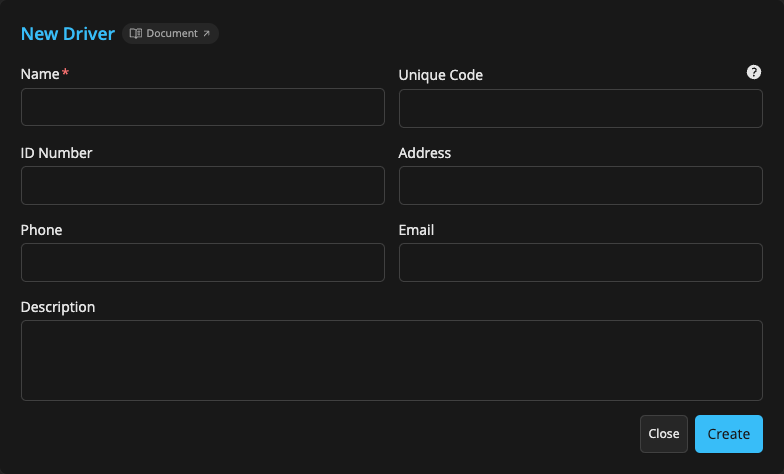
Driver Information Fields
- Name: The driver's full name.
- Unique Code: Codes such as RFID, iButton, or Blue ID. These are required for auto-assigning drivers.
- ID Number: The driver's identification number.
- Address: The driver's address.
- Phone: The driver's phone number.
- Email: The driver's email address.
- Description: A brief note about the driver's record.
Editing a Driver
To edit an existing driver record:
- Locate the driver in the Drivers Table.
- Click the three-dot menu (…) next to the driver's name.
- Select Edit from the dropdown menu.
- The Driver Properties window will appear, where you can update the driver's details as needed.
- Click Update to confirm your changes.
The system can be configured to detect and report driver changes automatically. For example, if driver Sam is using a vehicle and is later replaced by driver Jake, this update will be sent to the system. To enable this feature, the GPS device must support and be configured with an iButton or RFID reader.